Talk to Sales
Get Started With CTRL ENTER
Go to Page
Prompt Library
Prompt Library Video Tutorial
Using the Prompt Library
Using the Prompt Library
The Prompt Library is where you can access pre-built system templates and create your own reusable prompt templates — saving time on tasks you perform repeatedly.
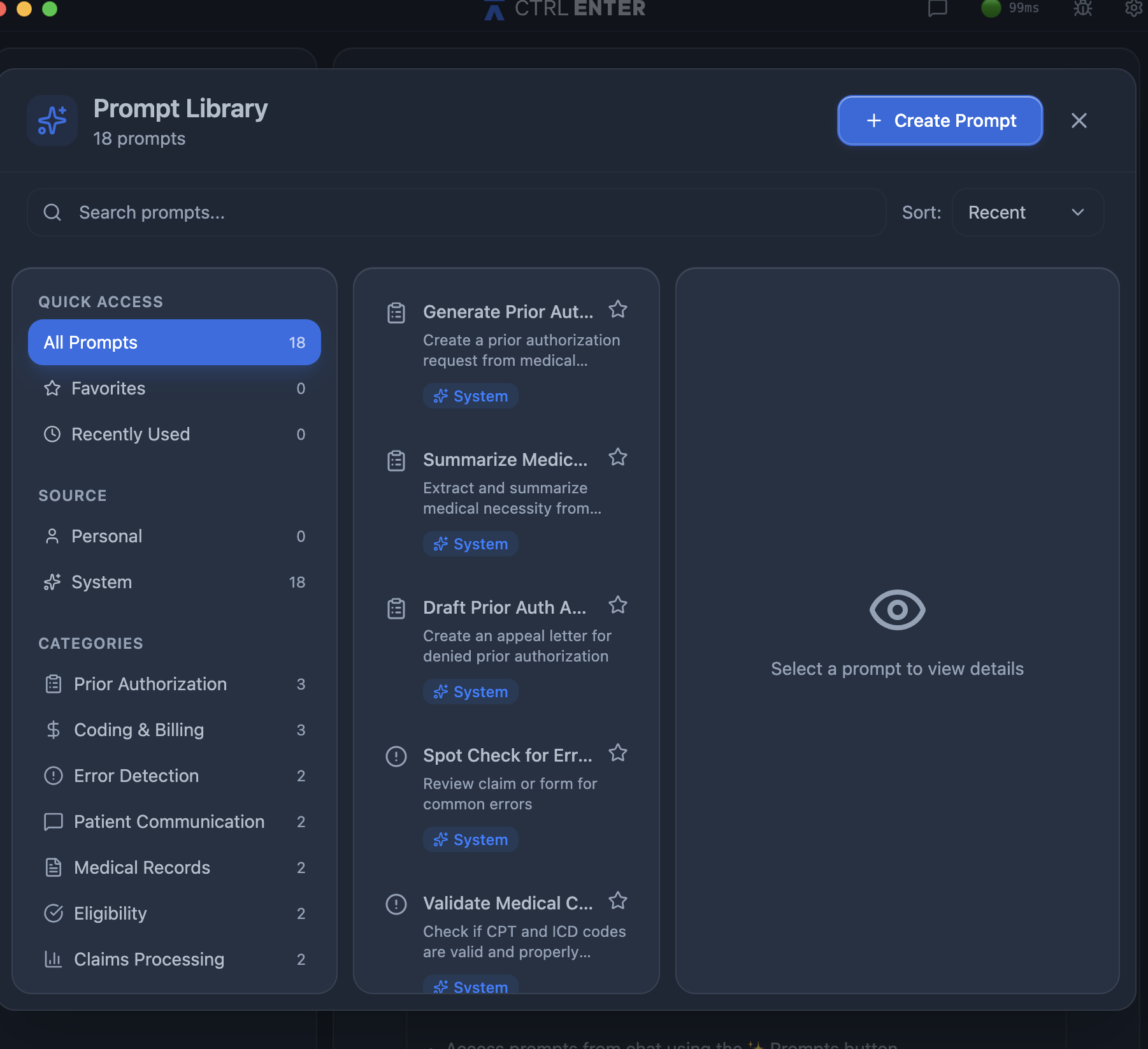
To access it, click the gear icon (⚙️) in the top right corner, select Prompts from the left sidebar, then click Open Prompt Library. You can also access your prompts at any time from the chat interface using the ✦ Prompts button in the toolbar.
.png)
What's in the Library
The Prompt Library has two sources of prompts:
System Templates — 20 pre-built prompts created by CTRL ENTER, organized across eight clinical and billing categories. These are ready to use immediately and cover the most common healthcare workflows, including prior authorization, coding and billing, error detection, patient communication, medical records, eligibility, and claims processing.
Your Prompts — custom prompts you've created yourself. These are personal to your account unless shared at the organization level.
You can browse by category, search by keyword, star prompts as Favorites for quick access, and view Recently Used to quickly return to prompts you've run before.
Creating a Custom Prompt
Click + Create Prompt in the top right of the Prompt Library to open the prompt builder.
Title (required) Give your prompt a clear, descriptive name so it's easy to find later. Example: Generate Prior Authorization
Description (optional) A brief note on what the prompt does. Example: Create a prior authorization request from medical records
Category (required) Select the category that best fits your prompt. Options include Prior Authorization, Coding & Billing, Error Detection, Patient Communication, Medical Records, Eligibility, Claims Processing, and General.
Prompt Content (required) Write the prompt itself. This is the instruction CTRL ENTER will follow when you run it. You can include variable placeholders using double curly braces — {{variable_name}} — for any information that will change each time you use the prompt.
For example:
"Review the following claim for errors and missing modifiers. Payer is {{payer_name}}. Patient diagnosis is {{diagnosis_code}}. Procedure billed is {{cpt_code}}. Flag any issues and recommend corrections."
When you run the prompt, CTRL ENTER will prompt you to fill in the variables before executing — making the same template reusable across different patients, payers, and scenarios.
Click Show Preview to see how your prompt will appear before saving.
.png)


ENTER is HIPAA compliant and SOC 2 Type 2 certified. See our trust center to learn more.
Ready to Get Started?
Talk to our sales team and see how much ENTER can impact your Revenue Cycle Management today!