Talk to Sales
Get Started With CTRL ENTER
Go to Page
Desktop Installation
Desktop Installation Tutorial Video
Step 1 — Download the App
Go to enter.health/ctrl-enter and click Download Options. Select the version for your operating system:
- Download for Mac
- Download for Windows
- Download for Debian (Linux)
- Download for Fedora (Linux)

Step 2 — Install the App
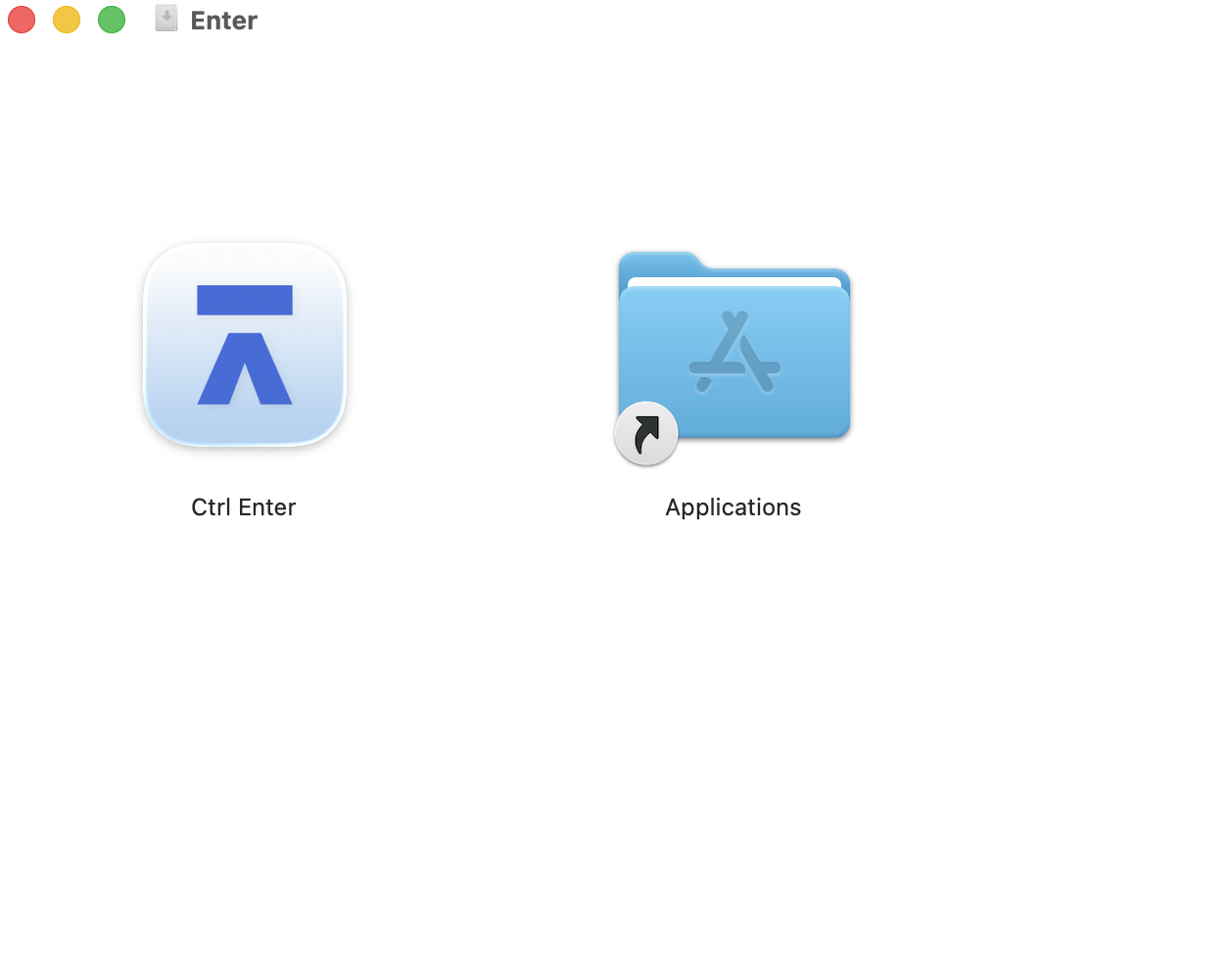
Once the download completes, open the installer file. On Mac, a window will appear showing the Ctrl Enter icon and an Applications folder — drag the Ctrl Enter icon into the Applications folder to install it.
Step 3 — Open CTRL ENTER
Step 3 — Open Ctrl Enter
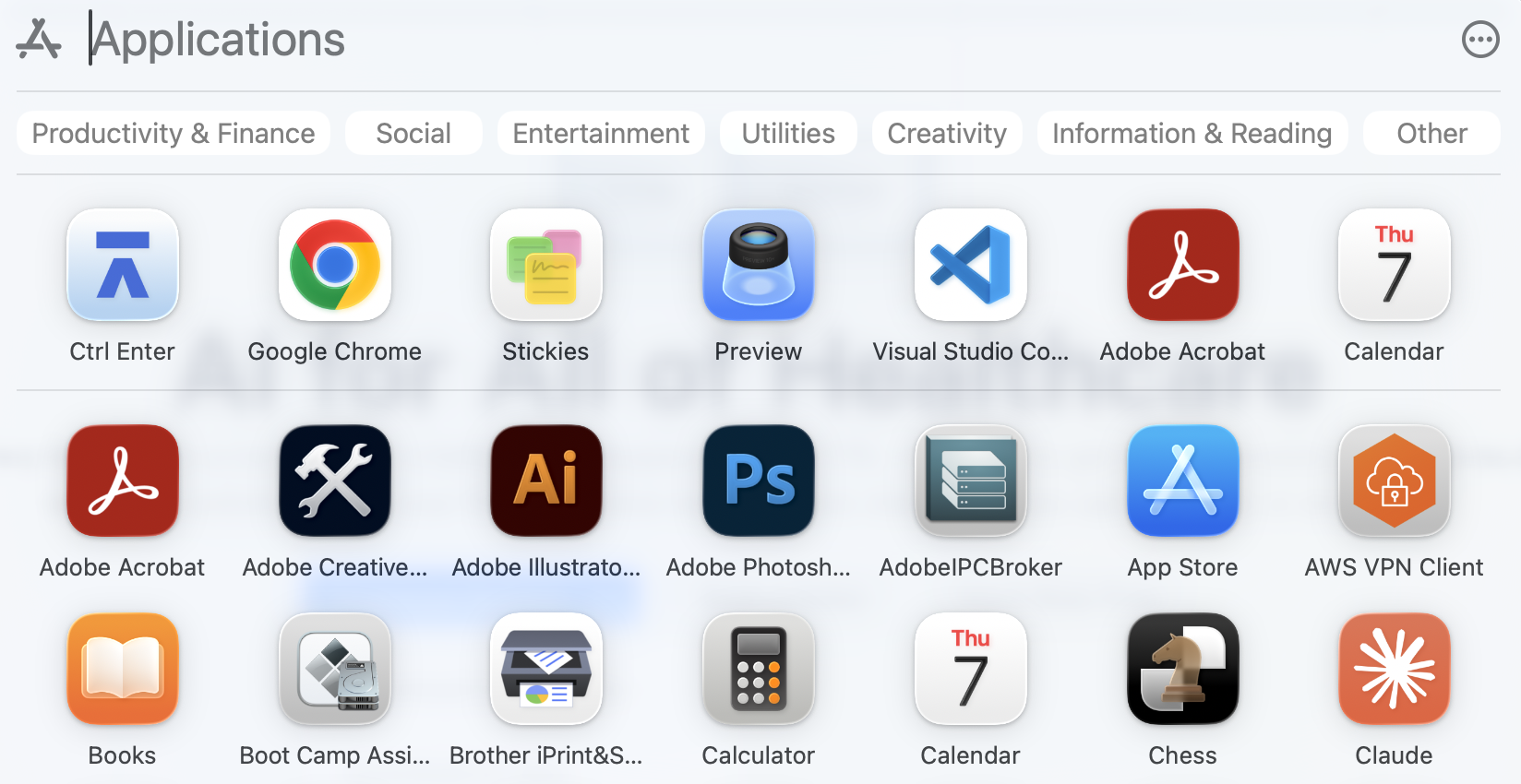
Open your Applications folder and double-click Ctrl Enter to launch it.
Step 4 — Sign In
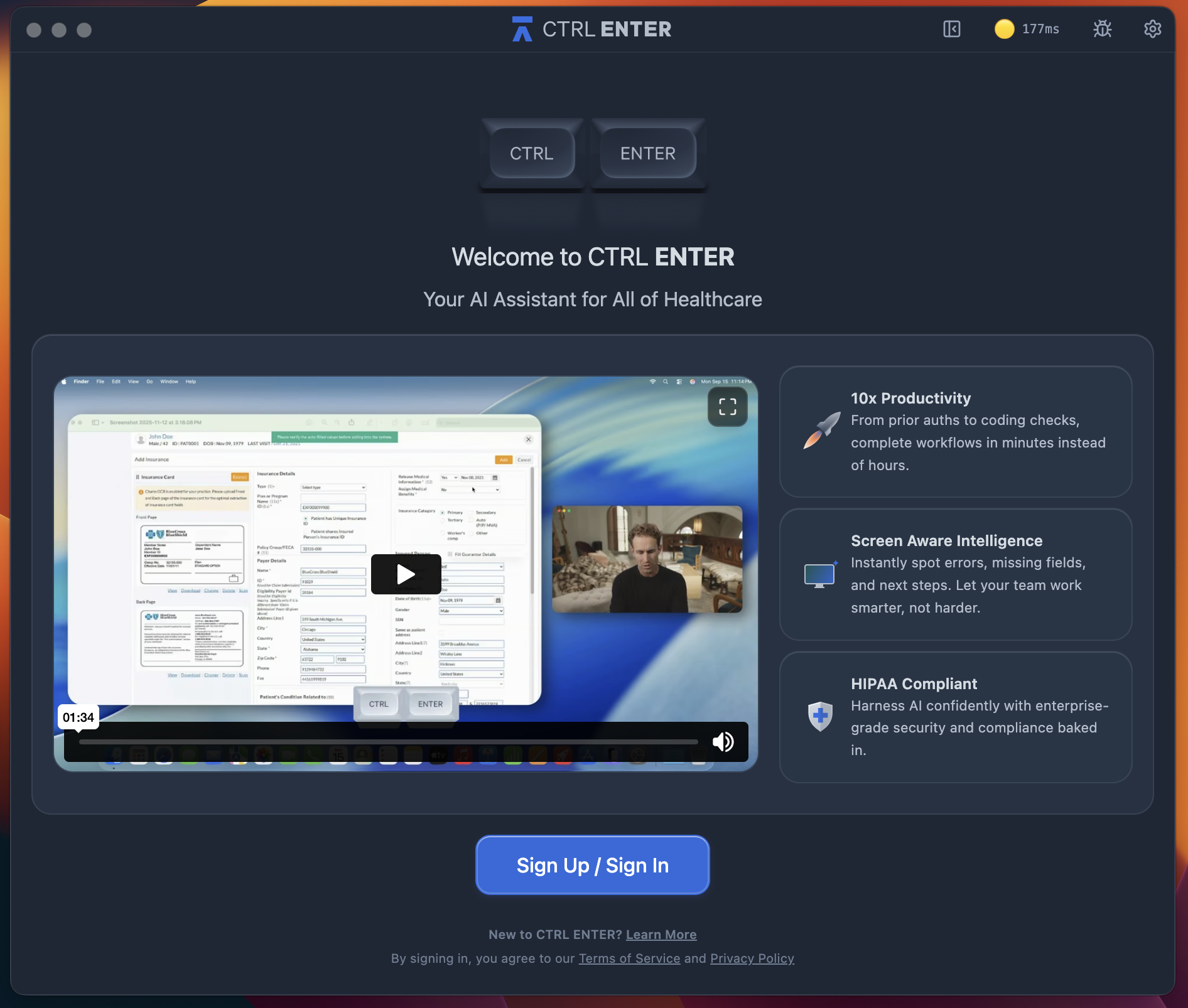
When the app opens, click Sign In in Web App — this will open the sign-in page in your browser. You can sign in with your email, Google, or Microsoft account, or create a new account if you don't have one yet.
Step 5 — You're ready!
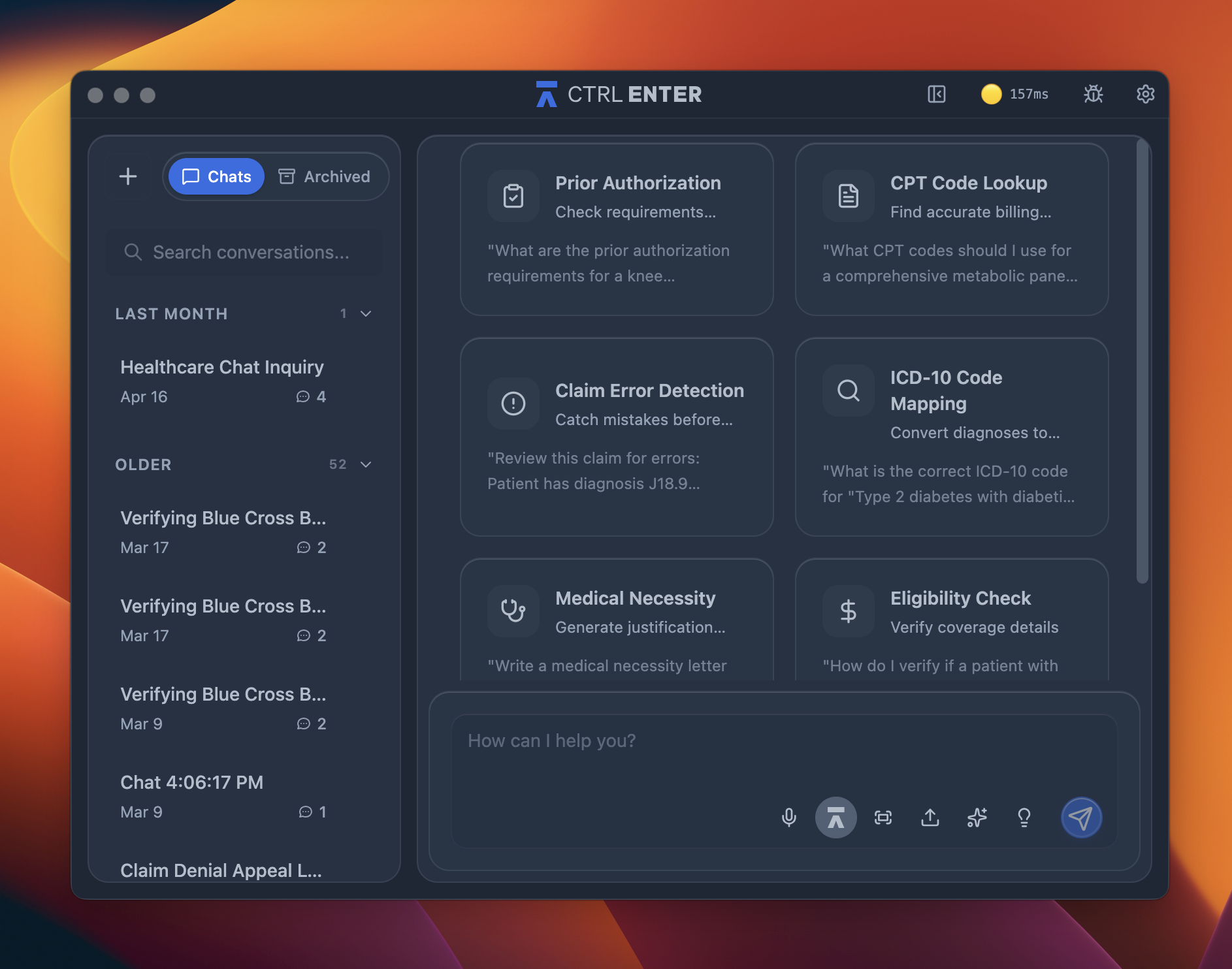
Once signed in, you'll land on the CTRL ENTER dashboard. You can start with one of the built-in prompts — Prior Authorization, CPT Code Lookup, Claim Error Detection, and more — or just type your question directly into the chat.


ENTER is HIPAA compliant and SOC 2 Type 2 certified. See our trust center to learn more.
Ready to Get Started?
Talk to our sales team and see how much ENTER can impact your Revenue Cycle Management today!